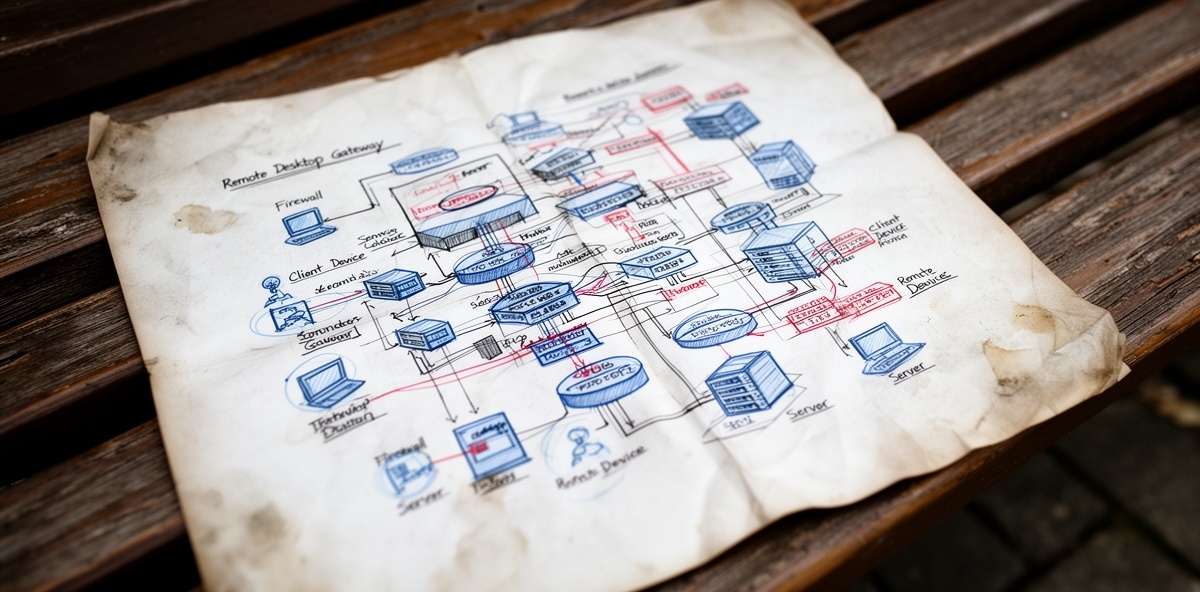
Browser Based RDP Access Targets
Operationalizing Clientless RDP: A Technical Guide to the Cloudflare Browser RDP Builder
Cloudflare’s browser-based Remote Desktop Protocol (RDP) allows users to access internal Windows desktops directly through a web browser, leveraging identity-aware access policies and the IronRDP engine. While this eliminates the need for VPNs and local RDP clients, the manual configuration of Infrastructure Targets, Virtual Networks, and Access Applications can be a bottleneck for growing environments.
The cf-browser-rdp-builder PowerShell script is designed to automate this lifecycle, providing a "Configuration-as-Code" approach to Zero Trust remote access.
Why This Matters for Admins and Technical Teams
For infrastructure teams managing dozens or hundreds of internal servers, manual dashboard configuration is prone to human error and configuration drift. This script provides several key benefits:
- Eliminates Human Error: It ensures that every RDP target is consistently mapped to the correct Virtual Network and Port (3389).
- Scalability: What takes 15 minutes in the UI can be performed in seconds via the script, allowing for mass-onboarding of server fleets.
- Security Consistency: It forces the use of "Browser Rendering" and standardized session durations across all targets, ensuring no server is left with insecure defaults.
- Auditability: Because the script can be driven by a CSV or configuration file, it provides a clear record of which resources are exposed and to whom.
Technical Breakdown of the Script
The script acts as an orchestration layer for the Cloudflare Zero Trust API. Below is a breakdown of the primary sections of the code and their functions.
1. Authentication and Header Initialization
Before interacting with the API, the script must establish a secure session using Cloudflare API credentials.
PowerShell
$headers = @{
    "X-Auth-Email" = $AuthEmail
    "X-Auth-Key"   = $AuthKey
    "Content-Type" = "application/json"
}
What it does: This section constructs the authentication headers. By using X-Auth-Key (Global API Key) or an Authorization: Bearer token, the script ensures that all subsequent Invoke-RestMethod calls are authorized to modify the Zero Trust environment.
2. Infrastructure Target Registration
The first major technical step is defining the "Infrastructure Target." This tells Cloudflare where the server lives inside your private network.
PowerShell
$targetBody = @{
    hostname = $TargetName
    ip = @{
        ipv4 = @{
            ip_addr = $InternalIP
            virtual_network_id = $VNetID
        }
    }
} | ConvertTo-Json

$targetResponse = Invoke-RestMethod -Uri "https://api.cloudflare.com/client/v4/accounts/$AccountID/infrastructure/targets" -Method Post -Headers $headers -Body $targetBody
What it does: This code block registers the server's internal IPv4 address and links it to a specific Virtual Network ID. This is critical because it allows Cloudflare’s routing service (Apollo) to know which Tunnel should be used to reach the destination IP.
3. Creating the Access Application
Once the target is registered, the script creates an Access Application. This is the "front door" that the user sees in their browser.
PowerShell
$appBody = @{
    type = "self_hosted"
    name = $TargetName
    domain = "$TargetName.yourdomain.com"
    http_config = @{
        browser_rendering = $true
    }
    session_duration = "24h"
} | ConvertTo-Json

$appResponse = Invoke-RestMethod -Uri "https://api.cloudflare.com/client/v4/accounts/$AccountID/access/apps" -Method Post -Headers $headers -Body $appBody
What it does: This is the most vital part of the automation. It explicitly sets browser_rendering = $true. Without this flag, Cloudflare would treat the request as a standard web page rather than spinning up the IronRDP engine to render the RDP session in the browser.
4. Policy Association
The final step is defining who can access the server.
PowerShell
$policyBody = @{
    name = "Allow Admins"
    decision = "allow"
    include = @(
        @{ email = @("admin@example.com") }
    )
} | ConvertTo-Json

Invoke-RestMethod -Uri "https://api.cloudflare.com/client/v4/accounts/$AccountID/access/apps/$($appResponse.result.id)/policies" -Method Post -Headers $headers -Body $policyBody
What it does: It takes the Unique ID ($appResponse.result.id) from the previous step and attaches a security policy to it. This ensures that the RDP session is identity-locked immediately upon creation.
Summary of the Workflow
The logic flow of the cf-browser-rdp-builder is designed to be idempotent and sequential:
- Define the identity and network parameters.
- Register the internal IP as an Infrastructure Target.
- Expose that target via an Access Application with Browser Rendering enabled.
- Secure the application with a specific identity policy.
By using this script, technical teams can move away from manual "point-and-click" configuration and toward a faster, more secure deployment model for remote server management.
Related posts


Leave a Comment
Your comment will be reviewed before appearing on the site.
Comments
Be the first to comment on this post!